
We’ve all done it. You walk into a room, flip the light switch, and… nothing. No lights. So what do you do? The same thing as me. You flip it again. And again. And maybe one more time, just in case it magically decides to work. Yeah, nope. Something’s broken, and flipping the switch isn’t working. Ugh. How many people in your household does it take to change a light bulb?
That’s kind of what it feels like when you set up a rule in Asana, apply it to a recurring task, and then watch it… do absolutely nothing. You check the rule. You check the trigger. You double-check the conditions. Everything looks right. But the rule just won’t fire. And no amount of re-checking seems to fix it. Sometimes, it’s not because there’s a problem with your rule. It’s due to how Asana handles recurring tasks.
Let’s talk about what’s actually going on and, more importantly, two solutions that will get things working the way you expect. If you’re still new to Asana and Rules, I recommend you watch the video walking through everything step-by-step. That said, I’ve included each step in this post, as well.
Why Recurring Tasks and Rules Sometimes Don’t Mix
Here’s the situation. You have a recurring task sitting in your project, assigned to a team member, set to repeat every Tuesday and Thursday. Everything looks great. You’ve also built a rule that says, “When a task is added to this project in this section, move it to the Upcoming Action Items section.” You test it with a regular task and it works perfectly.
But then you complete the recurring task. Asana generates the next occurrence (a new task), and… the rule doesn’t fire. Is there a light bulb broken somewhere?
Why is this happening? So far as I can tell, it’s because Asana doesn’t see that new recurring task the same way it sees a normal task being added to a project. Internally, Asana treats that new recurring task differently. Your rule is set up correctly. Asana just isn’t recognizing the event the way you’d expect.
So we need to get a little creative.
Solution A: The Task Type Method
This first solution is a bit more involved to set up, but it’s the more reliable of the two. It uses a custom Task Type to essentially trick Asana into firing your rules on recurring tasks. You’ll need to be on the Advanced or Enterprise tier for this to work. There are three steps.
Step 1: Create a Custom Task Type
This is a little advanced, but the key to this method is in creating a new task type (similar to Milestone or Approval tasks). In your project, hover to Customize > Task Types and Templates and ‘Add task type’. Follow the steps to setup your new task as follows:
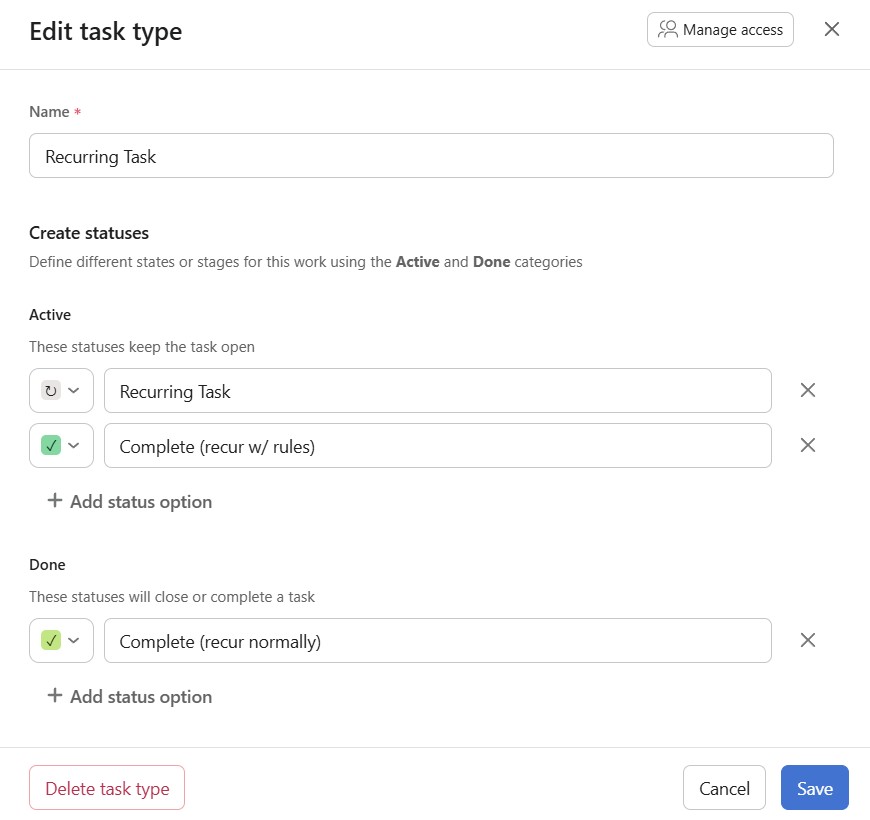
Once saved, this task type is available across your organization. Because of that, I recommend keeping the name and options generic rather than something department-specific. That way, anyone in the organization who runs into this same challenge can use it.
Step 2: Create the Trigger Rule
This is the rule that tricks Asana into firing the rule on the new incoming task. Create a new rule with the following setup:

Step 3: Create Your Desired Rule
Now create the rule you actually wanted in the first place, the one that does something with the newly created recurring task. Just remember that the Condition (Check If) box in the middle needs to include the ‘Check if task type is ‘Recurring Task’. Here’s how mine looks:
One critical setting: Don’t forget to click the gear icon on this rule and make sure “Trigger via other rules” is toggled on. This is the linchpin of the entire system. It tells Asana to recognize rule-triggered actions (from the first Rule) as valid triggers for this rule. Without it, none of this works.

All Set! Applying the Task Type to Your Tasks
For any recurring task you want this to work on, you’ll need to convert it to the new task type. Select the task, and just like you’d convert a task to a milestone or an approval, convert it to a “Recurring Task” type. Your team will need to learn this extra step, but it’s similar to workflows they may already be familiar with.
Once everything is set up, completing a recurring task using the “Recur with Rules” option will mark it complete, generate the next occurrence, and fire your downstream rules exactly as expected. Woohoo!
Solution B: The Agile Method
If your team uses a board view or Kanban-style workflow where tasks move from section to section (or through custom field stages like Backlog → In Progress → Complete), there’s another approach that doesn’t require a custom task type. Just keep in mind that your team must remember to never actually mark the task as complete, but manually select or drag to the ‘Complete’ stage so the Rules fire properly. Here is an example of what those two Rules might look like.


Which Solution is Right for You?
Both approaches get you to the same result: rules that actually work when recurring tasks are completed. Here’s a quick comparison.
Solution A (Task Type Method) is better when your team works in list view, you need the flexibility of manual completion, or you want a more foolproof setup. It takes more initial configuration but protects against user error.
Solution B (Agile Method) is better when your team already uses a Kanban workflow and is accustomed to moving tasks between columns rather than checking tasks complete. It’s faster to set up, but relies on team discipline.
Either way, you’re no longer flipping that light switch and wondering if the light will actually turn on!
Questions about optimizing your projects and workflows in Asana? Drop me a line or leave a comment below.